

UK IPTV M3U playlist Guide: How to Stream Live TV on Any Device
Why More Viewers Are Switching to UK IPTV M3U
Television habits in the UK are changing fast. More viewers are leaving behind aerials and satellite dishes and moving to simpler internet‑based options like UK IPTV M3U. With the right playlist and a compatible app, watching live TV online becomes much easier and more flexible.
Many users first discover how it works directly from platforms such as the main IPTV service homepage, where the basics of IPTV playlists and streaming devices are explained.
A good UK IPTV M3U setup lets users enjoy live channels, entertainment, movies, and more from one place. Whether it is used on a Smart TV, phone, or streaming device, the experience feels lighter, quicker, and far more convenient than older viewing methods.

Key Takeaways Before Using a UK IPTV M3U Playlist
Before diving deeper into how everything works, it helps to understand what people usually gain from using a UK IPTV playlist. Most viewers move to this system because it simplifies how television is organised and streamed across devices.
Important things to remember:
- Digital playlists allow you to access many channels from one single source
- A IPTV M3U setup can work across Smart TV, mobile devices and streaming boxes
- Simple adjustments inside IPTV apps can significantly improve picture quality
- One internet connection can deliver both international and local programmes
- Organised channel groups make browsing faster and easier
- A stable connection at home is essential for smooth playback
What a UK IPTV M3U Playlist Actually Is
A IPTV M3U playlist is essentially a small text file that contains links to streaming sources. When this file is loaded into an IPTV application, the player reads each entry and connects to the corresponding stream. Instead of manually searching for channels, the playlist automatically builds the viewing interface.
Think of it like a digital channel directory. Once the UK M3U file is added to the app, categories appear instantly and users can start browsing through programmes.
How the M3U Structure Works
The format itself is extremely simple. Each playlist normally begins with a header that tells the application it is reading an M3U playlist. Below that header, each channel entry contains two main parts: channel information and the streaming link.
Example structure:
#EXTM3U
#EXTINF:-1,Channel Name
http://example-stream-link.m3u8
When an IPTV application loads this data, it reads the link and starts streaming the video feed. This is why a UK IPTV playlist can work with many different applications and devices.
How IPTV Apps Read a UK IPTV M3U Playlist
Applications designed for IPTV simply scan the playlist and build an interface around it. Once the IPTV M3U file is added, the player organises categories automatically and prepares each stream for playback.
Commonly used IPTV apps include:
- IPTV Smarters Pro
- TiviMate
- IBO Player
- SmartOne IPTV
These players are built to handle a UK IPTV M3U playlist and display the content in a clean interface with channel groups and programme listings.
For readers who want a deeper explanation of how IPTV works in the United Kingdom, this guide about IPTV services in the UK explains the overall system and compatible devices.
Typical Content Categories Inside a UK IPTV M3U Playlist
Most playlists organise channels into clear sections so viewers can navigate quickly. A UK IPTV M3U list often contains several types of content grouped together.
| Category | What viewers usually find |
|---|---|
| Live TV | entertainment, documentaries, news and general channels |
| Movies | on‑demand films in different genres |
| Series | episodic shows organised by season |
| International | channels from multiple countries |
| Catch‑up | previously aired programmes available later |
This structured layout is one of the reasons many viewers prefer a IPTV M3U playlist. Instead of jumping between different services, everything can appear in one organised interface.
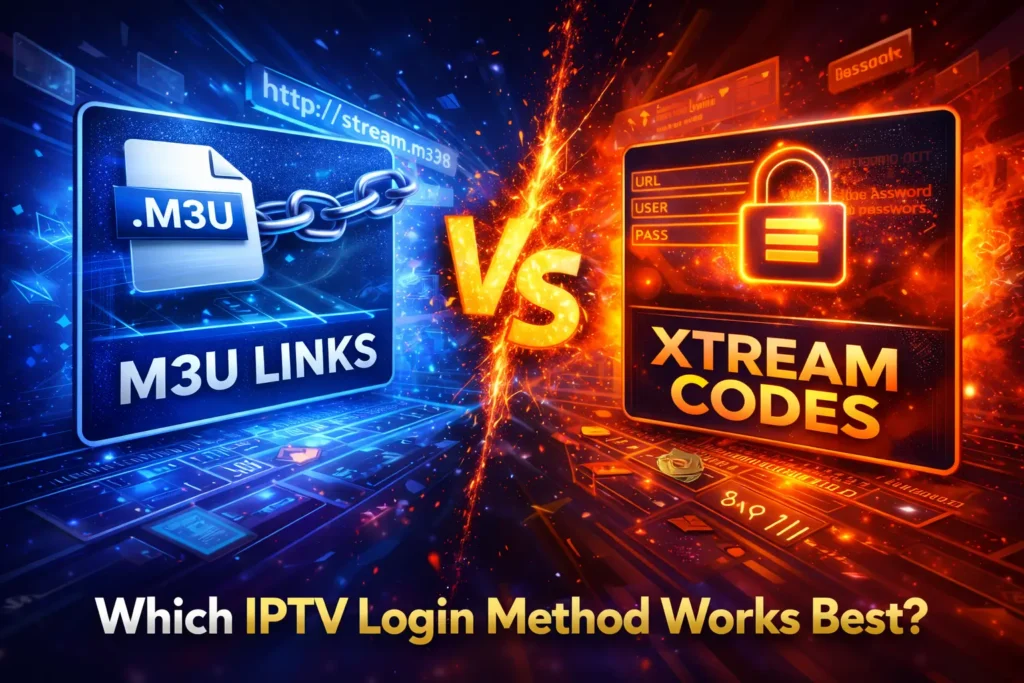
M3U Links vs Xtream Codes: Which Login Method Works Best?
When people start using UK lPTV M3U playlists, one of the first things they notice is that there are two main ways to log into an IPTV service: a classic M3U playlist link or an Xtream Codes login. Both methods allow you to stream live television through IPTV apps, but the way they connect to the service is slightly different.
Before choosing a method, many viewers first look at the subscription plans available. Below is an example of the most common IPTV subscription durations converted into British pounds for UK users.
| Subscription Length | Price (GBP) | What You Get |
|---|---|---|
| 1 Month | £9.99 | Full access to live TV and on‑demand content |
| 3 Months | £23.99 | Stable streaming with regular playlist updates |
| 6 Months | £34.49 | Long‑term viewing with better value |
| 12 Months | £49.49 | Best value plan for continuous IPTV streaming |
For complete details about packages and features, you can check the official IPTV pricing plans.
What M3U Links Are and Why Many Users Start With Them
An M3U link is essentially a playlist containing the streaming addresses for different channels. When you paste the link into an IPTV player, the app loads the UK lPTV M3U playlist and automatically displays the available channels and categories.
This approach is popular because:
- setup usually takes less than a minute
- the playlist can work on many IPTV applications
- users can easily move the UK lPTV M3U link between devices
However, M3U playlists sometimes need refreshing if the provider updates the channel list.
How Xtream Codes Login Works
Xtream Codes works a little differently. Instead of a single playlist link, the IPTV app connects using three pieces of information:
- server URL
- username
- password
Once entered, the IPTV player connects directly to the provider’s system and loads the channels automatically. Many users feel this method keeps the UK IPTV M3U content more organised inside the app.
Xtream Codes is often preferred because:
- playlists update automatically
- categories appear more structured
- streaming connections may remain more stable
Quick Comparison of Both Methods
| Feature | M3U Playlist | Xtream Codes |
|---|---|---|
| Setup Speed | Very fast | Slightly longer |
| Device Flexibility | Works on most players | Works on supported IPTV apps |
| Playlist Updates | May require refresh | Usually automatic |
| User Experience | Simple and flexible | Structured and stable |
In practice, both methods can work perfectly with a IPTV M3U setup. The choice usually depends on which IPTV application you prefer and how you like your channels organised.
Many experienced viewers actually keep both options available, using the IPTV M3U link for flexibility and Xtream Codes when they want a more structured interface inside their IPTV player.

Loading a UK IPTV M3U Playlist on Different Devices
One of the reasons many viewers choose UK lPTV M3U playlists is the freedom to watch television on almost any device. Once the playlist is added to an IPTV player, the application organises the channels automatically and the viewing interface appears in seconds.
The setup process is usually simple and follows the same basic idea: install an IPTV app, add the UK M3U playlist, then refresh the channel list.
Smart TV Setup (Samsung or LG)
Most modern Smart TVs support IPTV applications. After installing a compatible player, loading a IPTV M3U playlist normally takes less than a minute.
Typical steps:
- Open the TV application store
- Install an IPTV player such as IPTV Smarters or another compatible app
- Launch the app and choose the playlist login option
- Paste the M3U playlist link
- Refresh the playlist to load the channels
Once completed, the categories appear automatically and the M3U playlist begins streaming through the application.
Installing on Android TV or TV Box
Android TV devices are often the easiest way to run a M3U playlist because the Google Play Store offers many IPTV players.
Quick setup process:
- Install an IPTV player from the Play Store
- Open the application
- Enter the M3U playlist URL
- Allow the app to download the channel list
After loading the playlist, Android TV devices organise everything into categories for easier navigation.
Streaming on Firestick
Amazon Firestick is another popular device for streaming with M3U playlists. After installing an IPTV player, the setup process is almost identical.
If you want a complete walkthrough for this device, this guide explains the steps in detail: Firestick IPTV setup guide.
Once the player is installed, simply enter the M3U playlist and allow the application to load the channels.
Quick Device Compatibility Overview
| Device | Setup Difficulty | Recommended App Type |
|---|---|---|
| Smart TV | Easy | IPTV player from TV store |
| Android TV | Very easy | Play Store IPTV apps |
| Firestick | Easy | Sideloaded IPTV apps |
| Smartphone | Very easy | Mobile IPTV player |
Because a UK IPTV M3U playlist works across many platforms, viewers can switch devices without needing a completely different setup. This flexibility is one of the biggest advantages of modern IPTV streaming.

Setting Up UK IPTV M3U on Different Devices
Once you have access to a M3U playlist, the next step is loading it on the device you prefer. One of the reasons viewers choose a IPTV M3U setup is because it works across many platforms, from streaming sticks to smartphones and computers.
The process usually follows the same logic: install an IPTV player, paste the IPTV M3U playlist link, then refresh the channels.
Amazon Firestick Setup
Firestick is one of the most popular devices for streaming with a IPTV M3U playlist. The installation process is simple and usually takes just a few minutes.
Basic steps:
- Open the Amazon Appstore
- Search for an IPTV player such as IPTV Smarters
- Install and launch the application
- Paste your UK IPTV M3U playlist link
- Allow the player to load the channels
For a full walkthrough of compatible apps and installation steps, you can check this detailed guide about IPTV apps for Firestick.
Watching on Smartphones
A UK IPTV M3U playlist can also run smoothly on mobile devices, which makes it convenient for people who prefer watching content while travelling.
Typical mobile setup:
- Install an IPTV player from the app store
- Open the application
- Enter the UK IPTV M3U playlist URL
- Let the player load the available channels
Both Android and iOS devices support IPTV players that can read a UK IPTV M3U playlist without complex configuration.
Streaming on Windows and Mac Computers
Many users also run a UK IPTV M3U playlist directly on their computer. This can be useful for people who prefer watching content on a larger monitor.
| Platform | Typical Player | Difficulty |
|---|---|---|
| Windows | IPTV software or media player | Easy |
| Mac | IPTV compatible player | Easy |
After loading the UK IPTV M3U playlist, the application automatically builds the channel list and streaming categories.
Popular IPTV Applications for UK Streaming
Different IPTV players handle UK IPTV M3U playlists slightly differently. Choosing a reliable app can significantly improve the viewing experience.
IPTV Smarters
Many viewers start with this application because it is simple to install and supports UK IPTV M3U playlists across multiple devices.
Common advantages:
- easy navigation
- playlist support
- live TV and on‑demand sections
TiviMate
TiviMate is widely used on Android TV devices. When a UK IPTV M3U playlist is loaded, the interface displays channels in a clean guide-style layout.
IBO Player
Another IPTV player frequently used for Smart TVs. It supports UK IPTV M3U playlists and offers a stable playback experience.
Tips to Improve UK IPTV M3U Streaming Quality
Even with a good UK IPTV M3U playlist, streaming quality depends heavily on your internet connection and device setup.
Recommended Internet Speeds
| Streaming Quality | Minimum Speed |
|---|---|
| HD Streaming | 5 Mbps |
| Full HD | 10 Mbps |
| 4K Streaming | 25 Mbps |
A stable connection ensures that a UK IPTV M3U stream loads quickly without buffering.
Simple Optimisation Tips
To get the best results when using a UK IPTV M3U playlist:
- keep IPTV apps updated
- restart your router occasionally
- refresh playlists regularly
- use wired connections when possible
When these small adjustments are made, a UK IPTV M3U setup usually becomes far more stable and enjoyable to use across different devices.
Final Thoughts on UK IPTV M3U Streaming
After exploring how playlists, apps, and devices work together, it becomes clear why many viewers are switching to UK IPTV M3U streaming. Instead of relying on traditional television hardware, a UK IPTV M3U playlist allows channels and on‑demand content to load directly through an internet connection.
Once the playlist is added to a compatible IPTV application, the system organises channels automatically. A well‑configured UK IPTV M3U setup can work on Smart TVs, streaming sticks, smartphones, and even computers, giving viewers full control over where and how they watch television.
To maintain a smooth experience, most users focus on three simple habits:
- keeping IPTV applications updated
- maintaining a stable internet connection
- refreshing the UK IPTV M3U playlist periodically
When these basic steps are followed, a UK IPTV M3U configuration can provide a flexible and convenient way to access television content across multiple devices.
For readers who want to explore more IPTV guides and streaming resources, the official IPTV blog and tutorials provide additional tips and explanations.
Frequently Asked Questions
What exactly is a UK IPTV M3U playlist?
A UK IPTV M3U playlist is usually a text‑based file or URL containing streaming locations for television channels. When this file is loaded into an IPTV player, the application reads the links and connects to the streams so viewers can watch live content online.
Which applications can open a UK IPTV M3U playlist?
Several IPTV players support UK IPTV M3U playlists. Many viewers use apps designed for Smart TVs, Android TV devices, Firestick, or smartphones. Once the playlist is entered, the application automatically builds the channel categories.
Can I watch UK IPTV M3U streams on a mobile phone?
Yes. A UK IPTV M3U playlist can be loaded into compatible mobile IPTV apps on both Android and iOS devices. After entering the playlist link, the channels appear inside the application interface.
What is the difference between M3U links and Xtream Codes?
An M3U link is a direct playlist file containing streaming URLs. Xtream Codes uses login credentials such as a server address, username, and password to connect the IPTV player to the streaming service. Both methods can deliver the same UK IPTV M3U content.
What internet speed is recommended for IPTV streaming?
Most IPTV streams work best with a stable connection. For smooth playback of higher‑quality channels within a UK IPTV M3U playlist, many users aim for speeds above 20–25 Mbps.
DMCA Disclaimer
This article is intended for educational and informational purposes about IPTV technology. We do not host, distribute, or control any streaming content. Users are responsible for ensuring that their use of IPTV services and UK IPTV M3U playlists complies with the laws and regulations applicable in their country.
